XFCE and Wayland

After having installed Raspberry Pi OS Trixie on a Pi 500+ I wondered if XFCE would run with the default Wayland setup. I’m going to use the 500+ as a desktop solution so it would be nice if it would run my go-to desktop manager without having to switch to X11. Turns out Trixie comes with XFCE 4.20 that has partial Wayland support. So installed it and configured it to run as the default desktop environment. This blog post describes the steps I had to go through to get XFCE running with Wayland.

LightDM

The default login manager of the Raspberry Pi OS is LightDM so in order to be able to log into an XFCE session some changes need to be made there. By installing XFCE a Wayland session desktop file gets installed too and by referencing this file in the LightDM configuration you can have LightDM starting up an XFCE session after a successful login. The involved entries are user-session and autologin-session under the [Seat:*] section. These default to rpd-labwc. Change the values of these entries to xfce-wayland and after having restarted LightDM you should log into an XFCE session. So your /etc/lightdm/lightdm.conf file should have the following entries:

[Seat:*]
...
user-session=xfce-wayland
autologin-session=xfce-wayland
...

Restarting LightDM can be done with sudo systemctl restart lightdm. Bear in mind this will log you out immediately!

XFCE

Within XFCE you can now customise the environment to your liking. I like the Greybird theme so I installed that and set it as the Style in the Appearance app. For the icons I prefer the elementary theme so after having installed that theme I selected it under the Icons tab. For the rest I’m OK with the defaults. After that I configured my panels. Setting the wallpaper and cursor theme with the XFCE tools doesn’t work though so I had to resort to setting those using the swaybg utility and the labwc window manager.

labwc

To set the wallpaper/background I installed the swaybg package and created the file wallpaper.desktop in ~/.config/autostart/ with the following content:

[Desktop Entry]
Type=Application
Version=1.0
Name=Set Wallpaper
Comment=Set Wallpaper
Exec=swaybg -i /usr/share/rpd-wallpaper/RPiSystem_dark.png -m fill
Terminal=false

You can change /usr/share/rpd-wallpaper/RPiSystem_dark.png to the path of he wallpaper of your choice. This will get picked up on your next login. Next up, the cursor theme. I prefer the DMZ-White theme and you can set this using labwc. labwc looks into ~/.config/xfce4/labwc/ for its configuration after having installed XFCE so I modified the environment file in that directory to look like this:

# Mouse settings
XCURSOR_THEME=DMZ-White

I also added a section to disable Caps Lock and map the right Alt key to the Compose key:

# Keyboard settings
XKB_DEFAULT_LAYOUT=
XKB_DEFAULT_OPTIONS=compose:ralt,ctrl:nocaps

I did some more personal customisation in ~/.config/xfce4/labwc/rc.xml, like changing and adding some key bindings and changing some theme settings. Having worked with Openbox for years (https://autostatic.com/tag/openbox/) this felt very familiar.

One thing was still missing and that was the network icon in my top panel. So I installed the network-manager-applet package and added the file nm-applet.desktop to the ~/.config/autostart/ directory with the following content:

[Desktop Entry]
Type=Application
Version=1.0
Name=nm-applet
Comment=Start NetworkManager taskbar applet
Exec=/usr/bin/nm-applet
Terminal=false

Loose ends

There must be a way to set the wallpaper right after login. Now it takes over 5 seconds before swaybg sets the wallpaper. Also intelligently hiding an XFCE panel only seems to work with maximised windows. So I’ve set “Automatically hide the panel” to “Always” for the bottom panel. xfce4-screenshooter can only take screenshots of the whole desktop, not of single windows. Another thing is the Raspberry Pi Control Center (rpcc), once I ran that it set some defaults, breaking some changes I had made.

References

I used to following sources to gather information:

XFCE and Wayland

Linux audio performance improvements

This is a recap in blog form of the following Mastodon toot: https://mastodon.autostatic.net/@jeremy/115632831793380239

The biggest performance improvements when it comes to Linux audio you can do are in my experience:

  • Setting the CPU scaling governor to performance.
  • Disabling SMT (Simultaneous MultiThreading).
  • Allow your DAW to set CPU DMA latency. For instance Ardour and Reaper can do this.

The Ardour manual provides some great background information on these matters. CPU scaling governor and SMT are explained here: https://manual.ardour.org/setting-up-your-system/the-right-computer-system-for-digital-audio/. CPU DMA latency is explained here: https://manual.ardour.org/setting-up-your-system/the-right-computer-system-for-digital-audio/

All other recommendations that for instance rtcqs or Millisecond give are for those that really need stable, ultra low latency. So buffer sizes below 64 samples that result in round-trip latencies below 10 milliseconds. This is the area where threaded IRQs or disabling Spectre/Meltdown mitigations might contribute to getting rid of that stray xrun.

Regarding threaded IRQs, enabling those by itself doesn’t change anything. You will need to configure those threaded IRQs after you’ve enabled them. Tools that can do this are rtcirqus or rtirq. You could also do this manually by using the chrt command on the threaded IRQ process.

Modern systems use MSI(-X) interrupts though (Message Signaled Interrupts) so shared IRQs should be something of the past. On those systems there’s very little gain in prioritising threaded IRQs.

The main difference between rtcirqus and rtirq is that rtcirqus allows you to set the real-time priority of a thread based on ALSA card names. rtirq works differently, it sets the real-time priority based on kernel module names. So with rtcirqus you can be sure the desired audio interface gets the desired real-time prio, with rtirq you’re prioritising all the devices that make use of a specific kernel module (xhci_hcd, snd_hda_intel).

rtirq does allow for some finer grained control regarding USB2 ports and onboard audio devices that use the snd_hda_intel driver. The USB2 ehci_hcd driver and the snd_hda_intel driver add the bus name and card index number respectively to the IRQ thread process name so you can use that designation in the rtirq configuration file. In case of USB2 you’re still prioritising the IRQ of the whole USB bus though but then rtcirqus does the same.

Linux audio performance improvements

RME Digiface USB and PipeWire

My work laptop provided by SURF, a Dell Pro 14 Premium, runs a custom Dell Ubuntu 24.04 ISO since otherwise half of the peripherals don’t work. Ubuntu 24.04 comes with PipeWire so I was curious if the Digiface would work with such a setup. Well, it does, albeit with some quirks.

First of all PipeWire also doesn’t get the outputs right. With the help of WirePlumber I could map channels 33 and 34 of the phones output to Front Left and Front Right. But then the next issue popped up: weird garbled, phasing, ringing audio. When using ALSA directly with Ardour this happened too so it’s not a PipeWire issue. Tried tweaking things first and also tried a recent Liquorix kernel. To no avail. Then I started trying out different buffer sizes using pw-metadata and noticed the phasing, ringing sound would go away when changing the buffer size. And I also noticed that the garbled sound would come back if I used a buffer size higher than 64. So with the use of WirePlumber I also set that now. Another owner reported that setting a higher sample rate also alleviates the issue. I still like to figure out though why I can’t use higher buffer sizes. I think it’s related to the USB topology of this laptop as I don’t have this issue on my own laptops.

The WirePlumber configuration file to remap the phones outputs can be found here: https://codeberg.org/autostatic/gists/src/branch/main/99-rme-digiface-usb.lua. Ubuntu 24.04 uses WirePlumber < 0.5.0 so it’s still in Lua format. You can place this file in ~/.config/wireplumber/main.lua.d/. And it starts with 99- for a reason, the interwebs suggest a lower number but then it gets overwritten by global configuration files.

Below the WirePlumber configuration file that I use on the Dell Pro 14 Premium with an extra property to work around the garbled audio issue.

rule = {
  matches = {
    {
      { "node.name", "matches", "alsa_output.usb-RME_Digiface_USB__23800125__7C01A52EA9692C8-00.*" },
    },
  },
  apply_properties = {
    ["audio.position"] = "AUX0,AUX1,AUX2,AUX3,AUX4,AUX5,AUX6,AUX7,AUX8,AUX9,AUX10,AUX11,AUX12,AUX13,AUX14,AUX15,AUX16,AUX17,AUX18,AUX19,AUX20,AUX21,AUX22,AUX23,AUX24,AUX25,AUX26,AUX27,AUX28,AUX29,AUX30,AUX31,FL,FR",
    ["api.alsa.period-size"] = 64,
  },
}

table.insert(alsa_monitor.rules,rule)
RME Digiface USB and PipeWire

Now what does rtcirqus actually do?

To answer that question let’s assume the following:

  • You want to do real-time audio, for instance you would like to do an overdub in a song project by using a MIDI keyboard and a soft synth.
  • You’re using a USB audio interface.
  • You’re experiencing xruns when using lower buffer sizes (64 or even lower) that result in crackling audio.

Basically all components of a desktop computer or a laptop have an IRQ. Let’s say IRQs are some sort of communication lines between the brains of your computer (the CPU) and those components. All these communication lines are more or less the same as in, none of these communication lines has priority over the other. But if you suffer from bad audio quality caused by xruns then giving the communication line that is connected to your USB device more priority than the rest could alleviate the audio issues.

This is where rtcirqus could be helpful. What rtcirqus does is detecting your USB audio interface when it gets connected, then it figures out what the IRQ of the USB bus is that your audio interface is connected to and raises the priority of the IRQ attached to that USB bus. In other words, rtcirqus gives the communication line between the USB bus that your audio interface is connected to and the CPU of your computer a higher priority. This higher priority translates into other communication lines being throttled and giving the communication line of our USB audio interface more room to transfer and receive its audio data.

rtcirqus needs to be able to prioritize that communication line though and this is where the threadirqs kernel option is for, it creates so-called threads of all available IRQs on a computer. Threads are more or less like processes running on your computer, with threadirqs enabled you can list them as such with a command like ps -eLo cmd | grep '^[irq'. So make sure this kernel option has been added to the kernel command line. In case you’re using a real-time kernel this isn’t needed as a real-time kernel uses threaded IRQs by default.

So if you find yourself in such a situation, head over to https://codeberg.org/autostatic/rtcirqus and give rtcirqus a try, maybe it helps you achieving lower latencies with your USB audio interface while retaining a clean audio output signal.

Now what does rtcirqus actually do?

RME Digiface USB on Linux

With the release of the 6.12 kernel the RME Digiface USB is supported under Linux. Since this is a very portable device with lots of IO (32 in and 34 out) it got on my radar as a possible candidate for making recordings at my rehearsal space. It took a while before I stumbled upon a second hand unit but in the end I managed to find one nearby. Hooked it up to my notebook with an up-to-date Liquorix kernel and it worked out of the box.

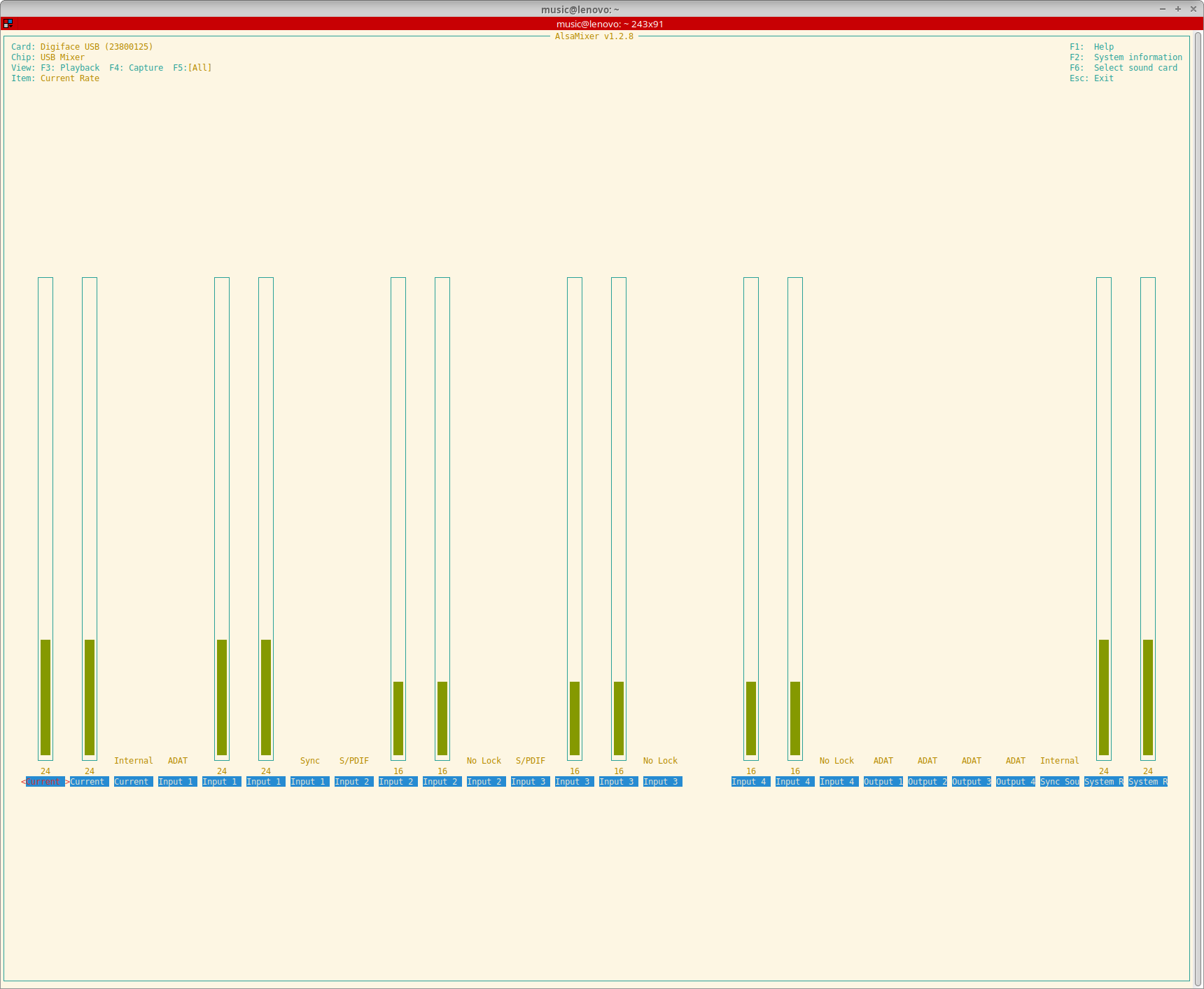
A lot of thanks go out to Asahi Lina for adding support for the RME Digiface USB to the 6.12 kernel. She even added the possibility to control the output format and clock source and to monitor sample rates, input formats, input sync statuses and the current sync source.

Screenshot of AlsaMixer showing all the controls available for the RME Digiface USB

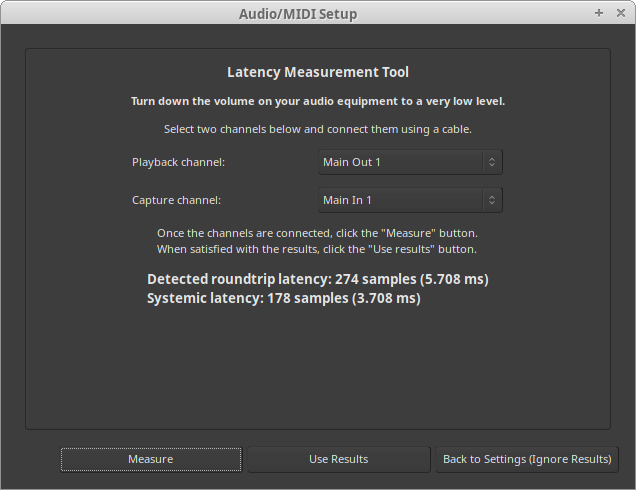
Have yet to test the Digiface USB with more than one ADAT device but with one device (a Behringer ADA8200) everything seems to work really well. Did some round-trip latency tests and with a buffer size of 16 samples and putting TotalMix in DAW mode (which had to be done on a different OS unfortunately but saved another 0.2 ms) I got it down to approximately 4.2 ms. Systemic latency with a buffer size of 16 samples and a sample rate of 48 KHz is 2 ms so somewhere a bit more than 2 ms of additional latency gets added. I think about 1.4 ms gets added by that converters if I did my maths right. According to the specs of the converters they add 22 samples (10 in and 12 out at 48 KHz). That leaves about 0.8 ms unaccounted for. Probably the USB bus buffer or something in the driver stack. Well, no real deal-breaker for me.

This image has an empty alt attribute; its file name is image-2.png
Ardour round-trip latency measurement with a buffer size of 32 and a 48KHz sample rate

Because I’m still on Debian 12 I couldn’t fully use the device with PulseAudio though. PulseAudio only supports devices with up to 32 channels in or out and since the Digiface has 34 output channels PulseAudio refused to output any audio through it. As a fix I added the following to the ~/.asoundrc file in my home directory:

pcm.snd_rme_digiface_usb {
    type multi
    slaves.rme.pcm "snd_output"
    slaves.rme.channels 34
    bindings.0.slave rme
    bindings.0.channel 32
    bindings.1.slave rme
    bindings.1.channel 33
}

pcm.snd_output {
    type hw
    card USB23800125
}

To make PulseAudio pick up this extra snd_rme_digiface_usb device I added the following to ~/.config/pulse/default.pa:

# RME Digiface USB
load-module module-alsa-sink device=snd_rme_digiface_usb

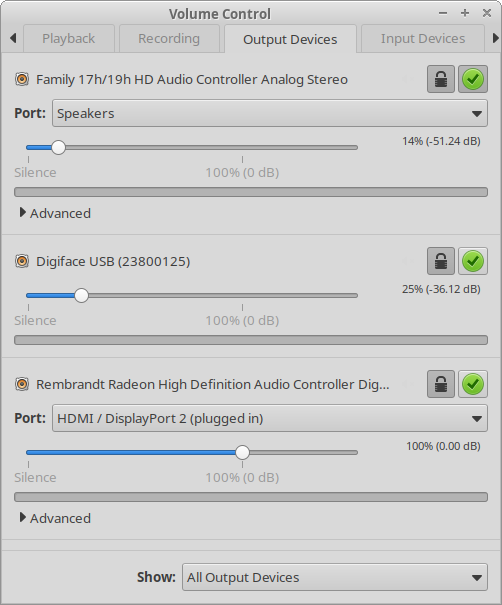
And now I can select the Digiface as an output source and use the phones output in a desktop session.

Screenshot of pavucontrol with the RME Digiface USB right in the middle

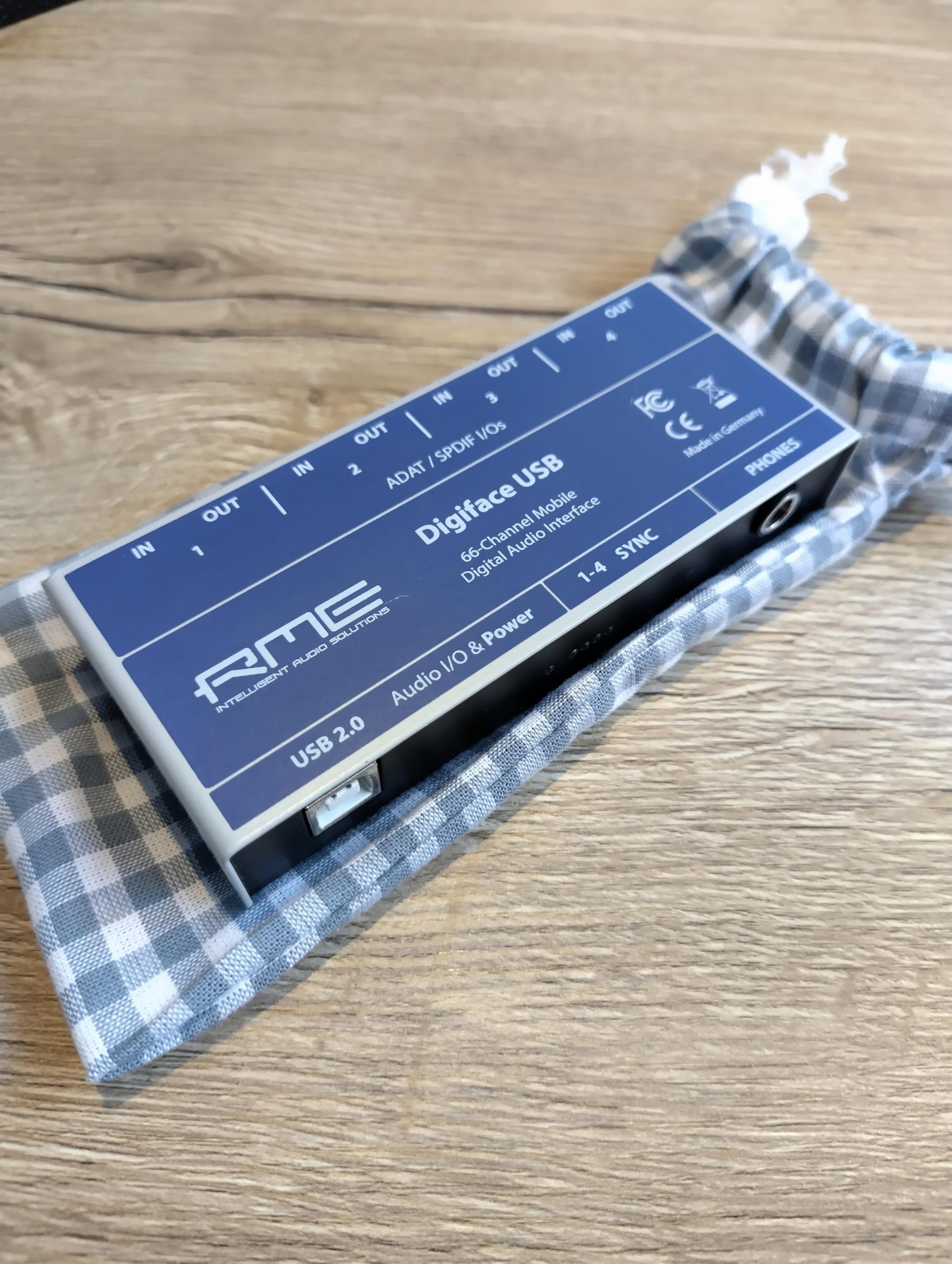
Another big bonus is the custom pouch my daughter made for it. I can now toss it in my bike bag without having to worry about dings or scratches.

RME Digiface USB tucked in a custom cotton pouch
RME Digiface USB on top of its custom cotton pouch

RME Digiface USB on Linux

Hang loose!

As of June 1st I will start a new adventure at SURF! I’m extremely grateful that I can be a part of this fantastic organization. It took me almost 20 years to get an appointment, I first applied there in June 2005 when it was still called SARA. Third time’s a charm I guess, I also applied for a position back in December but since that was for a storage specialist there wasn’t a full match.

Looking forward to starting there. Back to the field of education and research, I worked in that field before at the University of Amsterdam for 8 years back in the 00s. It feels like the circle is complete, at the UvA I tried really hard to get a Linux position but I was deemed too light for every application I did. But now almost 15 years later with a lot more experience and a solid resume I really was a valid contender for this position, for which I’m happy and also a bit proud.

I’m assigned an Specialist Engineer position within the internal operations team, in my case specialist as in Linux specialist. Work location will be the SURF location at the Science Park in Amsterdam, close to the infamous CWI. Can’t wait to have a daily Linux driver again instead of running a non-sanctioned OS with FreeRDP to be able to access my backlog. But first, document everything, improve and update existing documentation and transfer as much knowledge as possible to my current team members. And also migrate all Ubuntu 20.04 machines and getting the whole software stack to run containerized.

Hang loose!

Using Vim with ALE for Python linting and autocompletion

At work we use VS Code but if possible I would prefer not to use that on my work station at home. Since I’ve been apt purging nano for ages I started looking for a way to do this with Vim. In the end it turned out to be quite simple on my Debian Bookworm install.

Prerequisites

You will need the following packages:

  • vim
  • flake8
  • python3-pylsp
  • vim-ale

Install them with sudo apt install vim flake8 python3-pylsp vim-ale.

Configuration

Add the following lines to your .vimrc and you should be good to go!

syntax on

packadd! ale
let g:ale_completion_enabled = 1
let g:ale_linters = {'python': ['pylsp']}

On Ubuntu the situation is a bit different, the linter to add for autocompletion is called pyls but the executable is called pylsp. So to have ALE load the correct executable some extra configuration is needed.

syntax on

packadd! ale
let g:ale_completion_enabled = 1
let g:ale_linters = {'python': ['pyls']}
let g:ale_python_pyls_executable = 'pylsp'
Using Vim with ALE for Python linting and autocompletion

Turntables II

Ran into a SL1210MK2 for about the same price as a new Super OEM on a Dutch second hand market place so went for that. And it was only a 30km drive. It’s quite a battered specimen but the core parts work properly. I did make an appointment with a repair service to take a good look at it. The tone arm connector is worn out and has too much slack, the target light doesn’t work and I’d like to have the RCA cables replaced with better quality ones. And it has some kind of quick start cable that I would like to have removed. And the dust cover is pretty tatty and missing its hinges.

It came with no headshell, the seller offered the original but I declined since I already have an unused original headshell lying around and I was planning on putting a premounted Ortofon 2M Red on it anyway. Got that one in already, together with a nice Tonar Cork ‘n Rubber mat. Also ordered a Rega Fono Mini A2D phono preamp. This model comes with a builtin ADC with a Texas Instruments PCM2900C chipset, so 48kHz/16-bit. This can be very handy for spinning with time coded vinyl, no need to add an extra audio interface to the chain. And yes, already played around with that using Mixxx which works amazingly well.

Turntables II